
AWS 002: Personal AWS account ownership and learner responsibility
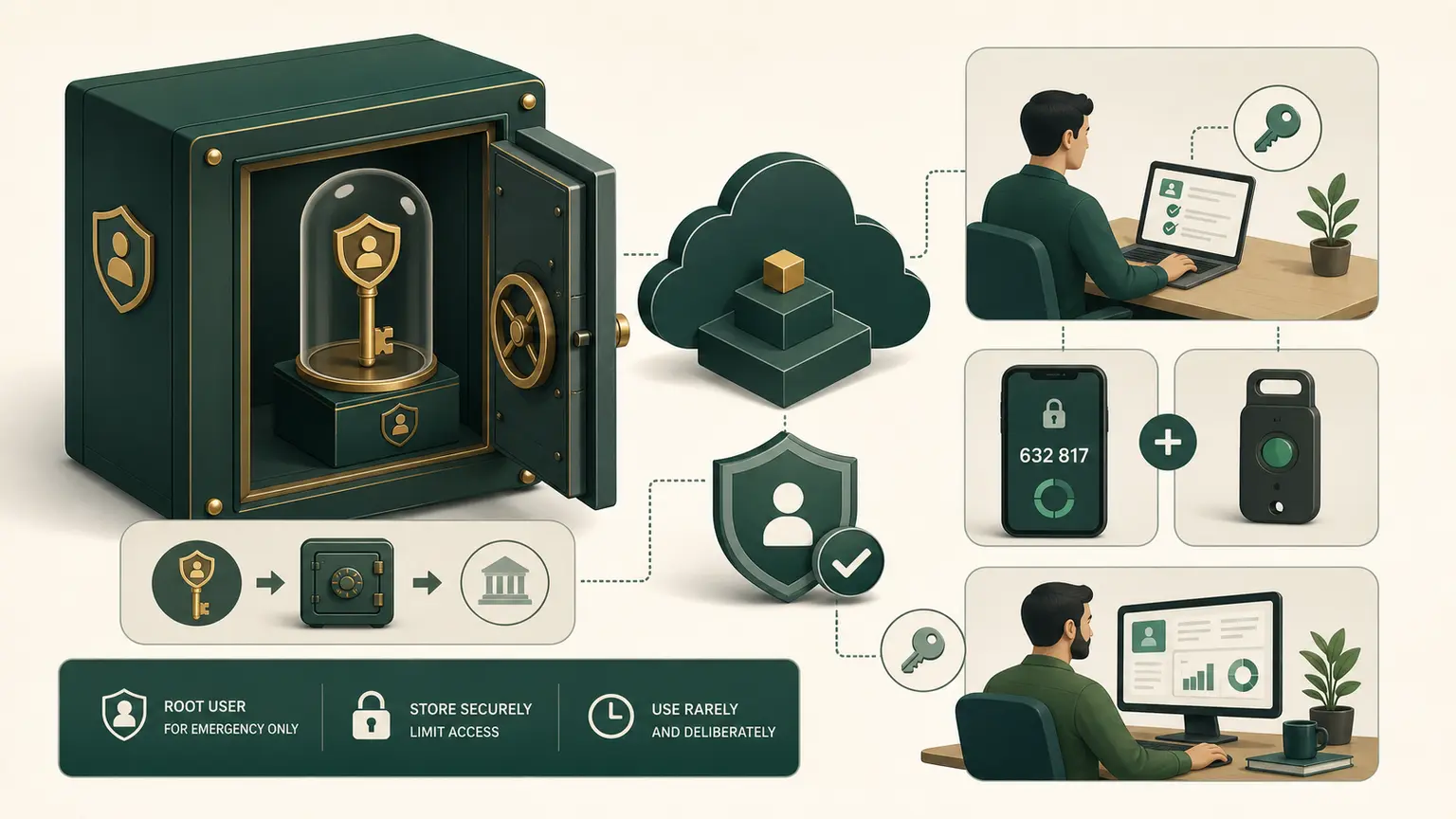
The situation
You will use a personal AWS account. You control its root email, payment method, security settings, resources, and charges. The instructor cannot recover your account, reverse a bill, protect a credential that you publish, or clean up a resource that you leave running.
That ownership is useful because you learn on a real control plane. It also creates responsibilities that must be understood before the first resource lab.
What you will be able to do
By the end of this lesson, you can:
- distinguish the AWS account root user from everyday administrative access;
- protect the root user and its recovery channels;
- verify primary and alternate contacts;
- identify your account plan and credit status without assuming that "Free Tier" means every service is free;
- create a redacted account-safety record;
- explain what you must do if a credential or account is compromised.
Understand the ownership boundary
When an AWS account is created, AWS creates an account root user. It is identified by the account email address and has complete access to the account. Some root-user powers cannot be reduced with an ordinary IAM policy.
Use the root user only for tasks that require it. Do not use it for routine labs, administration, Console browsing, CLI work, SDKs, or applications.
Root user
  Purpose: account ownership and rare root-only tasks
  Protection: strong password, multiple MFA devices, protected recovery channels
  Programmatic keys: do not create
  Daily use: no

Everyday learner identity
  Purpose: normal Console and lab work
  Protection: MFA and temporary credentials where supported
  Permissions: enough for the lesson, reduced as the course progresses
  Daily use: yes

Workload role
  Purpose: permissions for EC2, Lambda, containers, and other workloads
  Credentials: temporary and automatically delivered
  Human sign-in: no
You will build the everyday identity deliberately in the identity foundation. Do not create random IAM users or access keys now.
Before you sign in
Prepare these items:
- access to the root email inbox;
- access to the primary account phone number;
- one primary MFA device and, preferably, a second independent MFA device;
- a password manager;
- a non-public location for your recovery notes;
- the payment method associated with the account.
Do not place the root password, MFA seed, recovery codes, or payment information in the course evidence directory.
Practical account-safety procedure
AWS Console labels can change. If a label is slightly different, search the Console for the named service and confirm that the page is on an aws.amazon.com domain.
Step 1: sign in as the root user for this setup only
- Open the AWS sign-in page.
- Choose Root user.
- Enter the email address used to create the account.
- Complete password and MFA authentication.
- Confirm that you are in the intended account before changing anything.
Do not remain signed in as root after this procedure.
Step 2: verify root-user MFA
- In the Console, choose the account menu in the upper-right corner.
- Choose Security credentials.
- Find Multi-factor authentication (MFA).
- Confirm that at least one MFA device is assigned.
- If none is assigned, choose Assign MFA device and follow the current AWS procedure.
- Where possible, register a second MFA device stored independently from the first.
AWS recommends phishing-resistant MFA such as a passkey or security key where practical. AWS currently supports registering multiple MFA devices for the root user. Follow the current limit shown in the official MFA documentation rather than memorizing a static number.
Evidence: record only the MFA device type and the Console statement that MFA is assigned. Never capture a QR code, seed, one-time code, or device serial number that should remain private.
Step 3: confirm that root access keys do not exist
On the same Security credentials page:
- Find Access keys.
- Confirm that the root user has no active access key.
- Do not choose Create access key.
If a root access key exists:
- identify whether anything still depends on it;
- replace that dependency with an IAM role or another temporary-credential method;
- deactivate the key;
- verify that the dependency still works;
- delete the root access key.
Do not delete an in-use key blindly. Record the issue and remediate it safely.
Step 4: verify primary contact details
- Open the account menu.
- Choose Account.
- Review the primary contact email, phone number, and mailing address.
- Correct outdated information.
The root email and phone are recovery channels. Protect them as carefully as the AWS password. An attacker who controls a recovery channel may be able to interfere with account recovery.
Step 5: configure alternate contacts
On the Account page, find Alternate contacts and review:
- Billing contact;
- Operations contact;
- Security contact.
For a personal account, these may point to addresses you control. If you use different addresses, ensure that you actually monitor them. Do not invent an address merely to fill the field.
Expected result: all required contact channels are current and reachable.
Step 6: identify your Free Tier or account-plan state
- Search the Console for Billing and Cost Management.
- Open Billing and Cost Management home.
- Find the account-plan, credits, or Free Tier section shown for your account.
- Record:
- account creation period;
- Free plan, Paid plan, or legacy Free Tier status;
- remaining credits, if displayed;
- credit expiration date, if displayed.
Do not record full payment information or an unredacted account ID.
Important:
- Accounts created on or after July 15, 2025 can use the newer Free plan or Paid plan structure.
- Older accounts can remain under legacy Free Tier rules.
- Credits, free usage limits, and account plans do not make every service free.
- A Paid plan can incur charges beyond eligible credits and free usage.
- A Free plan restricts some services and ends according to the current plan conditions.
Always inspect your own Billing page and current AWS terms.
Step 7: sign out of root
- Open the account menu.
- Choose Sign out.
- Close the browser tab.
- Do not use the root session for later course labs.
Create the redacted safety record
Use your Linux terminal:
mkdir -p "$HOME/nitwings-aws/evidence/aws-002"Then create the checklist:
printf '%s\n' \
  'Root MFA assigned: YES/NO' \
  'Second MFA available: YES/NO' \
  'Root access keys present: NO/REMEDIATION REQUIRED' \
  'Primary contact verified: YES/NO' \
  'Billing contact verified: YES/NO' \
  'Operations contact verified: YES/NO' \
  'Security contact verified: YES/NO' \
  'Account plan identified: YES/NO' \
  'Root session closed: YES/NO' \
  > "$HOME/nitwings-aws/evidence/aws-002/account-safety.txt"
Open the file in a text editor and replace each YES/NO value with the true result. Do not claim YES without verification.
Display the result:
sed -n '1,20p' "$HOME/nitwings-aws/evidence/aws-002/account-safety.txt"Your responsibility during every lab
Before creating a resource:
- confirm the account and Region;
- read the cost tier;
- check current pricing;
- understand the cleanup sequence;
- use the course naming and tags;
- set a timer for short-lived resources.
During the lab:
- do not widen permissions or firewall rules as a random fix;
- do not publish credentials or sensitive identifiers;
- record expected and actual behavior;
- stop if the observed cost model differs from the lesson.
After the lab:
- clean up in dependency order;
- verify that the resource is actually deleted, not merely stopped;
- check every Region used by the lesson;
- record intentionally retained resources and their cost;
- review Billing data when it becomes available.
What to do after a suspected compromise
Warning signs include an unfamiliar sign-in, unexpected resource, unknown access key, changed contact, security email, or unexplained charge.
Use this order:
- preserve the notification and event details;
- regain and protect account access;
- contact AWS Support through official channels;
- identify affected credentials and resources;
- rotate or revoke exposed credentials;
- isolate malicious resources without destroying needed evidence;
- review activity and charges;
- document what happened and how recurrence will be prevented.
Do not follow phone numbers or links from suspicious email. Navigate to AWS Support from the official AWS site.
Common mistakes
| Mistake | Why it is unsafe | Correct action |
|---|---|---|
| Using root for every lab | A mistake or stolen session has maximum impact | Use root only for root-required tasks |
| Creating a root access key | It creates long-term programmatic credentials with account-wide power | Use roles and temporary credentials |
| Storing MFA and password together | One compromise can defeat both controls | Store independent factors separately |
| Assuming Free Tier means no bill | Eligibility depends on plan, account date, service, usage, Region, and time | Inspect the account and current pricing |
| Ignoring alternate contacts | Security, operations, or billing warnings can be missed | Maintain monitored contacts |
| Sending an account screenshot without redaction | It can reveal identity and billing information | Capture only the needed state and redact |
Knowledge check
- Why is the root user different from an administrator role?
- Should you create root access keys for this course?
- Why must the root email account also have strong security?
- What should you verify before relying on a Free Tier statement?
- Who is responsible for cleaning up a resource in your personal account?
Expected answers
- The root user is the account owner with powers that ordinary IAM permissions cannot fully constrain. An administrator role is an IAM identity used for delegated work.
- No.
- The email is part of account recovery and receives security communication.
- Your account creation date, current plan, remaining credits, expiration, service eligibility, Region, quantity, duration, and current pricing.
- You are.
Completion gate
You pass AWS 002 when:
- root MFA is assigned;
- no root access key exists, or a documented remediation is in progress;
- primary and alternate contacts are current;
- you have identified your account-plan and credit state;
- you signed out of root;
account-safety.txtcontains truthful, redacted evidence.
No AWS service resource was created, so no resource cleanup is required.