Docker Container

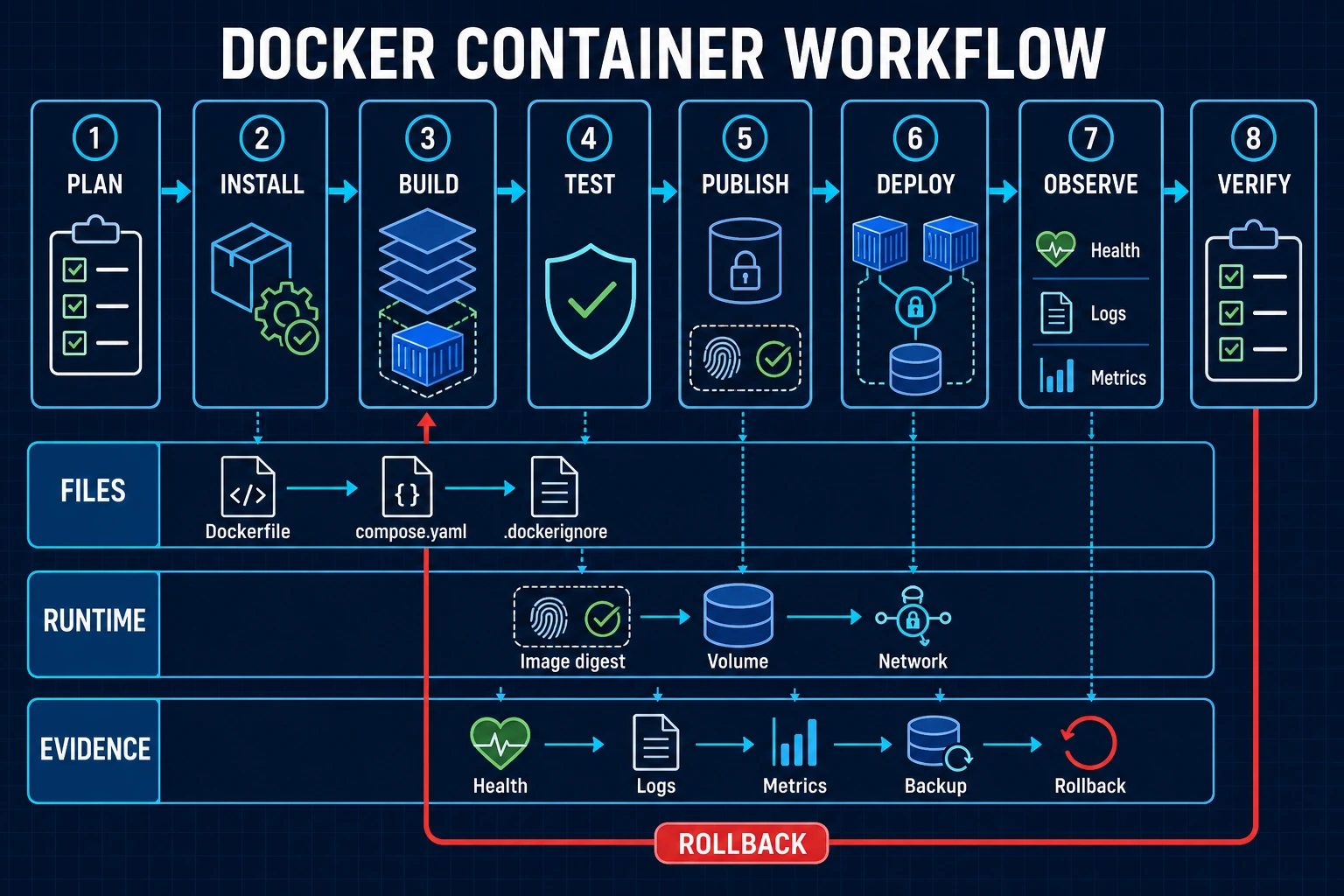
Docker commands are easier to learn when the command, its options, and its result appear together. This concise workflow explains the commands you need to install Docker, run and inspect a container, build an image, use Compose, keep data in a named volume, troubleshoot failures, and add another node only when orchestration is required.
Start with the options table if a command such as docker run -it is unfamiliar. For example, -i means interactive mode, while -t gives the container a terminal. Then use the complete command table to understand what Docker will create, change, display, stop, or delete.
What Docker is and how its parts work
Docker was first released in March 2013 and is an open platform for building, shipping, and running applications. Docker Engine and the Moby project are largely Go-based, while the complete stack also includes components such as containerd, runc, Buildx, and Compose.
| Term | Simple meaning | Example |
|---|---|---|
| Containerization | OS-level isolation. Containers share the host kernel instead of booting a complete guest operating system like a virtual machine. | A Linux Nginx process isolated in a container |
| Docker daemon | The dockerd server that manages images, containers, networks, volumes, and API requests. | sudo systemctl status docker |
| Docker client | The docker command that sends API requests to a local or remote daemon. | docker info |
| Docker host | The physical, virtual, or cloud system running the daemon and its containers. | The Ubuntu or RHEL server used below |
| Registry | A public or private server that stores images. | Docker Hub or an enterprise registry |
| Image | A read-only package containing an application, dependencies, files, and runtime metadata. | nginx:1.31.3-alpine |
| Ways to obtain an image | Pull one from a registry, build one from a Dockerfile, or commit a changed container. | Prefer docker pull or a reviewed docker build. Use docker commit only for limited diagnostics. |
| Container | A running or stopped instance created from an image and runtime options. | web-demo |
| Dockerfile | A text file named Dockerfile that contains image-build instructions. | FROM, COPY, RUN, CMD |
| Volume | Storage that can remain after a container is removed and can be attached to another container. | demo-data:/data |
An image is not running. A container is what Docker creates and starts from that image. Removing a container does not automatically remove a named volume or the downloaded image.
Benefits and limits of containers
Containers make application packaging and process isolation repeatable, but they do not remove operating-system, storage, network, security, or orchestration work. Use them where the boundary is clear and test that boundary on the target platform.
| Area | Current behavior | Example or limit |
|---|---|---|
| Resource model | Linux containers share the host kernel and isolate processes with kernel features. | A container usually uses less memory than a separate virtual machine, but the application still needs measured CPU and memory limits. |
| Image reuse | One reviewed image can create many consistent containers. | Tag docker-demo:1.0.0, record its digest, and promote that same artifact. |
| Host density | Several bounded services can share one host more efficiently than several complete guest operating systems. | Capacity, noisy-neighbor behavior, daemon access, and failure blast radius still require control. |
| Host support | Docker Engine runs Linux containers on a Linux kernel. Docker Desktop provides managed Linux virtual-machine integration on Windows and macOS. | Test file sharing, networking, architecture, and performance on the platform users will operate. |
| User interface | Containers are best suited to services, workers, command-line jobs, and build tasks. | A desktop application needs an intentional display, input, audio, security, and persistence design. |
| Multiple hosts | Docker Compose manages a project on one Docker Engine. | Scheduling across hosts requires an orchestrator such as Docker Swarm or Kubernetes. |
| Compatibility | The image operating system and CPU architecture must match a supported runtime path. | A Linux image does not become a native Windows container, and an amd64 image does not run everywhere without a matching build or emulation. |
Install Docker Engine
Use Docker's supported repository so Docker Engine, the command-line client, containerd, Buildx, and the Compose plugin come from one known source. Before installation, confirm that the host uses a supported 64-bit Ubuntu or RHEL release, inventory any existing containers and data, and remove conflicting distribution packages only after confirming they own no required workload.
Ubuntu
sudo apt update
sudo apt install ca-certificates curl
sudo install -m 0755 -d /etc/apt/keyrings
sudo curl -fsSL https://download.docker.com/linux/ubuntu/gpg \
  -o /etc/apt/keyrings/docker.asc
sudo chmod a+r /etc/apt/keyrings/docker.asc

. /etc/os-release
echo "deb [arch=$(dpkg --print-architecture) signed-by=/etc/apt/keyrings/docker.asc] https://download.docker.com/linux/ubuntu ${UBUNTU_CODENAME:-$VERSION_CODENAME} stable" \
  | sudo tee /etc/apt/sources.list.d/docker.list >/dev/null

sudo apt update
sudo apt install docker-ce docker-ce-cli containerd.io \
  docker-buildx-plugin docker-compose-plugin
sudo systemctl enable --now docker
RHEL
sudo dnf -y install dnf-plugins-core
sudo dnf config-manager --add-repo \
  https://download.docker.com/linux/rhel/docker-ce.repo
sudo dnf install docker-ce docker-ce-cli containerd.io \
  docker-buildx-plugin docker-compose-plugin
sudo systemctl enable --now docker
Verify the client, server, build plugin, Compose plugin, and first test container:
sudo docker version
sudo docker info
sudo docker buildx version
sudo docker compose version
sudo docker run --rm hello-world
Commands below omit sudo for readability. A new user should prefix them with sudo unless an administrator has deliberately configured rootless Docker or approved Docker socket access. Membership in the docker group normally gives root-level control over the host, so do not add users to that group as a casual permissions fix.
Run your first container
Run these commands in order. After this table you will have downloaded an image, started a web container, tested it, entered it, viewed its logs, stopped it, and removed it.
| Step | Command | What happens |
|---|---|---|
| 1. Download | docker pull nginx:1.31.3-alpine | Downloads the Nginx image to the local Docker host. |
| 2. Run | docker run -d --name web-demo -p 127.0.0.1:8080:80 nginx:1.31.3-alpine | Creates and starts web-demo in the background. Local port 8080 is sent to Nginx port 80. |
| 3. List | docker ps | Shows the running web-demo container. |
| 4. Test | curl http://127.0.0.1:8080/ | Requests the page. You should receive the Nginx welcome HTML. |
| 5. Enter | docker exec -it web-demo sh | Opens an interactive shell inside the running container. Type exit to leave it. |
| 6. Read logs | docker logs web-demo | Shows the request and container output without entering the container. |
| 7. Stop | docker stop web-demo | Stops the main Nginx process and leaves the stopped container available. |
| 8. Remove | docker rm web-demo | Deletes the stopped container. The downloaded image remains. |
| 9. Confirm | docker ps -adocker images | The container should be gone, while the Nginx image should still be listed locally. |
Understand the command options first
| Option | What it means | What happens |
|---|---|---|
-i | Interactive mode | Keeps standard input open so you can type into the container. |
-t | Terminal | Creates a pseudo-terminal so an interactive shell behaves like a normal terminal. |
-it | Interactive mode plus terminal | Commonly used together when opening sh or bash inside a container. |
-d | Detached mode | Runs the container in the background and returns its container ID. |
-a | All containers | With docker ps, includes stopped containers. |
-q | Quiet output | Shows only object IDs. Be careful when passing those IDs to delete commands. |
--name NAME | Container name | Assigns a readable name instead of relying on a generated name. |
-v SOURCE:TARGET | Volume or bind mount | Makes a Docker volume or host path available inside the container. |
-p HOST:CONTAINER | Publish a port | Forwards a host address and port to the application port inside the container. |
--expose PORT | Document a container port | Records that the container uses a port, but does not make it reachable from the host. |
--rm | Remove after exit | Automatically removes the container and its associated anonymous volumes when it exits. It does not remove the image or named volumes. |
-f | Force | Forces an operation such as image deletion. Confirm the exact target first. |
--privileged | Very broad host access | Removes important isolation boundaries. Do not use it for an ordinary application. |
--volumes-from | Reuse another container's mounts | Still exists, but explicit named-volume mounts are easier to understand and manage. |
The most important distinction is simple: -i keeps input open, -t creates a terminal, and -d puts the process in the background.
Essential Docker commands
Use this table as a task guide. Read the result and safety note before running a command that creates, publishes, or removes anything.
| Task | Current command | What it does | Important note |
|---|---|---|---|
| Check versions | docker version | Shows client and Engine versions and proves that the client can reach the daemon. | If only client details appear, check the selected context, socket access, and daemon. |
| Inspect the host | docker info | Shows storage, runtime, security, registry, and resource information for the Docker host. | Review warnings before treating the host as ready. |
| List local images | docker images | Shows images already downloaded or built on this machine. | docker image ls is the equivalent object-oriented form. |
| Find an image | docker search --filter is-official=true nginx | Searches Docker Hub and limits the result to Official Images. | Search results are discovery only. Review the image page, supported tags, and provenance. |
| Download an image | docker pull nginx:1.31.3-alpine | Downloads the named tag and its layers. | Use an explicit reviewed tag and record the resulting digest for repeatable deployment. |
| Open a temporary shell | docker run --rm -it --name shell-lab alpine:3.23 sh | Creates a container, keeps input open with -i, allocates a terminal with -t, and opens sh. | --rm removes this container and its anonymous volumes when it exits. It does not remove the image or named volumes. |
| Run a web container | docker run -d --name web-demo -p 127.0.0.1:8080:80 nginx:1.31.3-alpine | Starts Nginx in the background and maps local port 8080 to container port 80. | Binding to 127.0.0.1 keeps this example local to the host. |
| List running containers | docker ps | Shows containers that are currently running. | Use the name, image, status, and ports to confirm the intended object. |
| List all containers | docker ps -a | Includes stopped containers. | A stopped container can still hold useful configuration and writable-layer evidence. |
| Start a stopped container | docker start web-demo | Starts the same stored container with its saved configuration. | Recreate it when the image, mounts, ports, environment, or limits must change. |
| Open a shell in a running container | docker exec -it web-demo sh | Starts a separate interactive shell inside web-demo. | Leaving the shell does not stop the main Nginx process. |
| Read logs | docker logs --tail 100 web-demo | Shows the last 100 lines written to the container logging driver. | Use --since and --timestamps when building incident evidence. |
| Stop safely | docker stop --time 20 web-demo | Requests graceful shutdown, waits up to 20 seconds, then forces termination if required. | Choose a timeout that gives the application enough time to finish or checkpoint work. |
| Remove one container | docker rm web-demo | Deletes the exact stopped container. | It does not delete its image or named volumes. Inspect the target before removal. |
| Inspect configuration | docker inspect web-demo | Shows stored image, command, user, environment, mounts, ports, limits, health, and state. | The output can contain environment values, so handle it as operational data. |
| See filesystem changes | docker diff web-demo | Lists paths added, changed, or deleted in the container writable layer. | It is a diagnostic view, not a backup. |
| Show port mappings | docker port web-demo | Shows the host address and port mapped to each published container port. | Also test the application and firewall path. |
| Build an image | docker build --pull -t docker-demo:1.0.0 . | Builds the Dockerfile in the current context and checks for a newer base for its selected tag. | Review the base digest, build context, secret handling, and scan result before release. |
| Create a named volume | docker volume create demo-data | Creates Docker-managed persistent storage with the exact name. | Define ownership, backup, restore test, retention, and deletion approval. |
| Inspect a volume | docker volume inspect demo-data | Shows driver, mount point, labels, options, and creation time. | Metadata does not prove that application data is consistent or recoverable. |
| Remove one volume | docker volume rm demo-data | Deletes the named volume and its stored data when it is not in use. | Confirm the exact name and a tested backup first. |
| Authenticate to a registry | printf '%s\n' "$REGISTRY_TOKEN" | docker login registry.example.com --username operator --password-stdin | Sends a token to the registry without placing it directly in the command arguments. | Prefer a credential helper, use a scoped token, and do not print or commit it. |
| Tag an image | docker tag docker-demo:1.0.0 registry.example.com/team/docker-demo:1.0.0 | Adds a registry, namespace, repository, and tag reference to the same image. | Tagging does not upload anything. |
| Push an image | docker push registry.example.com/team/docker-demo:1.0.0 | Uploads missing image layers and the tag manifest. | Record the returned digest and deploy the reviewed digest. |
| Validate Compose | docker compose config | Renders and validates the Compose model. | Review the rendered output because variable substitution can reveal mistakes or sensitive values. |
| Start a Compose project | docker compose up -d | Creates or updates the current project in the background. | Run it from the intended project directory or set an explicit project name. |
| Inspect a Compose project | docker compose psdocker compose logs --tail 100 | Shows project containers and recent output. | Confirm health, ports, restarts, and application behavior. |
| Stop a Compose project | docker compose down | Removes this project's containers and default network. | It keeps named volumes unless you explicitly request volume removal. |
Attach, exec, expose, and publish
| Choice | What it does | Example |
|---|---|---|
docker attach NAME | Connects your terminal to the existing main process input and output. | docker attach web-demo. Signals and keys can affect the main process, so use it carefully. |
docker exec -it NAME sh | Starts a new shell inside an already running container. | docker exec -it web-demo sh, then exit. The main service continues. |
EXPOSE 80 or --expose 80 | Documents a container port in metadata but does not create a host mapping. | Peers on an allowed Docker network can still reach a service that listens on that port. |
-p HOST:CONTAINER | Publishes a host address and port to a listening container port. | -p 127.0.0.1:8080:80 maps local host port 8080 to container port 80. |
Complete current command coverage
The following commands complete the operational tasks covered by this guide. Commands marked Unsafe are still valid, so they are included, but they can interrupt workloads, remove data, expose the host, or create an image that cannot be reproduced. Read the scope and inspect the target before running them.
Manage the Docker service
| Task | Current command | Safety and result |
|---|---|---|
| Start Docker now | sudo systemctl start docker | Starts the Docker daemon for the current boot. |
| Enable and start Docker | sudo systemctl enable --now docker | Starts Docker now and enables it for future boots. |
| Read service status | sudo systemctl status docker --no-pager | Shows whether the service is active and displays recent status information. |
| Restart Docker | sudo systemctl restart docker | Unsafe on a shared host. A restart can interrupt containers depending on daemon and restart-policy behavior. Inventory workloads and use a maintenance window. |
| Stop Docker | sudo systemctl stop docker | Unsafe on a shared host. This can stop access to managed workloads. Confirm impact and recovery before use. |
Create images and containers with less common valid commands
| Task | Current command | Safety and preferred practice |
|---|---|---|
| Create an image from container changes | docker commit CONTAINER_NAME IMAGE_NAME:TAG | Unsafe for a normal production release. The command is valid, but the result is difficult to review and reproduce. Use it only for bounded diagnostics, then express required changes in a Dockerfile and rebuild. |
| Attach to the main process | docker attach CONTAINER_NAME | Unsafe for routine inspection. Keys and signals can affect the main process. Prefer docker logs or docker exec -it CONTAINER_NAME sh. |
| Create an anonymous volume | docker run --rm -it -v /data alpine:3.23 sh | Valid, but Docker assigns the volume name. Prefer a named volume when data ownership, backup, and reuse matter. |
| Reuse another container's mounts | docker run --rm -it --volumes-from SOURCE_CONTAINER alpine:3.23 sh | Valid, but it hides the mount list behind another container. Prefer explicit named-volume mounts such as -v demo-data:/data. |
| Reuse mounts with broad host authority | docker run --rm -it --privileged --volumes-from SOURCE_CONTAINER alpine:3.23 sh | Unsafe. --privileged removes important isolation boundaries and is not required merely to reuse a volume. Do not use it unless a reviewed workload genuinely needs that authority. |
| Bind a host directory | docker run --rm -it --mount type=bind,source=/srv/data,target=/data alpine:3.23 sh | Valid. Confirm the exact host path, permissions, SELinux labeling, backup owner, and whether the mount can be read-only. |
| Document an internal port | docker run -d --name internal-web --expose 80 nginx:1.31.3-alpine | --expose records container-port metadata but does not publish a host port. |
| Publish a local host port | docker run -d --name local-web -p 127.0.0.1:8080:80 nginx:1.31.3-alpine | Maps host port 8080 to container port 80 and limits this example to the local host. |
List, inspect, authenticate, tag, and publish
| Task | Current command | Result or warning |
|---|---|---|
| List volumes | docker volume ls | Shows Docker-managed volumes. |
| Create a volume | docker volume create demo-data | Creates the named volume demo-data. |
| Inspect a volume | docker volume inspect demo-data | Shows metadata and mount information, not application-level backup consistency. |
| Inspect a container | docker container inspect CONTAINER_NAME | Shows configuration and state. Output can contain operational or sensitive environment values. |
| Show published ports | docker port CONTAINER_NAME | Shows Docker's port mapping. Also verify the application listener and firewall path. |
| Authenticate to Docker Hub | docker login --username USERNAME | Use an access token when prompted and prefer a credential helper. Do not place a password or token directly in command arguments. |
| Authenticate non-interactively | printf '%s\n' "$REGISTRY_TOKEN" | docker login registry.example.com --username operator --password-stdin | Avoids placing the token directly in the process arguments. Protect the environment and shell session. |
| Tag an image | docker tag docker-demo:1.0.0 registry.example.com/team/docker-demo:1.0.0 | Adds another reference to the same local image. It does not upload the image. |
| Push an image | docker push registry.example.com/team/docker-demo:1.0.0 | Uploads missing layers and the tag manifest. Record the returned digest. |
Remove exact targets and perform unsafe bulk cleanup
| Task | Current command | Safety boundary |
|---|---|---|
| Remove one stopped container | docker rm CONTAINER_NAME | Inspect the exact name first. This does not remove a named volume. |
| Remove one image | docker image rm IMAGE_NAME:TAG | Use an exact tag or image ID. Do not add --force until you understand every reference. |
| Remove one volume | docker volume rm VOLUME_NAME | Unsafe when data matters. Confirm the exact volume and a tested backup before deletion. |
| Stop every running container | docker stop $(docker ps -q) | Unsafe. This targets every running container in the selected Docker context. Review docker context show and docker ps first. |
| Remove every container ID returned by the query | docker rm $(docker ps -a -q) | Unsafe. This broadly targets stopped containers and reports errors for running containers. Prefer exact names or a reviewed filter. |
| Force-remove every local image ID | docker rmi -f $(docker images -q) | Unsafe. This can remove cached and workload images across the selected context. Prefer one exact image reference. |
| Remove all stopped containers | docker container prune | Unsafe bulk deletion. Read the candidate scope and confirmation prompt. Use filters where possible. |
| Remove unused images | docker image prune | Unsafe bulk deletion. Without --all, it removes dangling images. Inspect disk use and image ownership first. |
| Remove unused volumes | docker volume prune | Unsafe data deletion. An unused volume can still contain required recoverable data. Inventory and back it up first. |
| Remove several unused object types | docker system prune | Unsafe bulk deletion. It removes stopped containers, unused networks, dangling images, and build cache. Adding --all or --volumes expands the deletion scope. |
Deprecated or invalid syntax is intentionally replaced at the point where its task is taught: use Docker's supported repository instead of an ambiguous distribution package, systemctl for service management, docker rm for container removal, current docker search filters, and OCI LABEL metadata in place of deprecated Dockerfile author syntax.
| Task | Current replacement | Why |
|---|---|---|
| Install Docker Engine | Use the supported Ubuntu or RHEL repository commands in the installation section. | The package source, Engine, CLI, containerd, Buildx, and Compose components remain explicit. |
| Manage the daemon | sudo systemctl start|stop|restart|status docker | Matches the systemd hosts used in this guide. |
| Remove a container | docker rm CONTAINER_NAME | Uses the supported Docker CLI removal command. |
| Search Docker Hub | docker search --filter is-official=true nginx | Uses a supported filter and avoids unsupported search flags. |
| Record image authorship | LABEL org.opencontainers.image.authors="[email protected]" | Uses OCI label metadata in place of the deprecated Dockerfile maintainer instruction. |
Dockerfile instructions, explained
The conventional filename is exactly Dockerfile, including the capital D on a case-sensitive filesystem. Dockerfile instruction names are conventionally written in uppercase so they are easy to distinguish from their arguments.
| Instruction | What it does | Simple example or rule |
|---|---|---|
FROM | Selects the base image for a build stage. | FROM python:3.13-slim. Use a supported version and record the digest. |
RUN | Runs a command while building the image and saves the result in a layer. | Install only required packages, then remove package cache in the same step. |
COPY | Copies local files from the build context into the image. | COPY app.py /app/app.py. |
ADD | Copies files and also has archive extraction and remote-source behavior. | Prefer COPY unless an ADD feature is intentionally required. |
EXPOSE | Documents the port used inside the container. | EXPOSE 8080. It does not publish the port on the host. |
WORKDIR | Sets the directory used by later build instructions and the default runtime command. | WORKDIR /app. |
CMD | Sets the default command or default arguments for the container. | Only the last effective CMD is used. |
ENTRYPOINT | Sets the main executable for the container. | Use exec form so signals reach the process correctly. |
ENV | Sets an environment variable in the image and containers created from it. | Do not put passwords or tokens in ENV. |
ARG | Defines a value available during image build. | It is not a secure secret channel and is not automatically present at runtime. |
VOLUME | Declares a container path intended for external storage. | Define the named volume and its backup lifecycle in Compose. |
A small Dockerfile example you can build
Create an empty directory and enter it:
mkdir -p ~/docker-container-demo
cd ~/docker-container-demo
Add the following three files exactly as shown. The application returns one plain-text response so you can prove the image works without installing a framework.
server.py:
from http.server import BaseHTTPRequestHandler, ThreadingHTTPServer

class Handler(BaseHTTPRequestHandler):
    def do_GET(self):
        body = b"Hello from the Docker example\n"
        self.send_response(200)
        self.send_header("Content-Type", "text/plain")
        self.send_header("Content-Length", str(len(body)))
        self.end_headers()
        self.wfile.write(body)

ThreadingHTTPServer(("0.0.0.0", 8080), Handler).serve_forever()Dockerfile:
FROM python:3.13-slim
WORKDIR /app
COPY --chown=65532:65532 server.py /app/server.py
USER 65532:65532
EXPOSE 8080
CMD ["python", "/app/server.py"].dockerignore:
.git
__pycache__
*.pyc
.env| Example line | What it does | Why it is here |
|---|---|---|
FROM python:3.13-slim | Starts the image from a small Python runtime. | The application needs Python but does not need a full general-purpose operating-system image. |
WORKDIR /app | Sets /app as the working directory. | Later relative paths and the default process have one predictable location. |
COPY --chown=65532:65532 ... | Copies server.py into the image and assigns its numeric owner. | The runtime user can read the file without owning it as root. |
USER 65532:65532 | Runs later instructions and the container process as a non-root UID and GID. | The demonstration server does not need root authority. |
EXPOSE 8080 | Documents that the application listens on container port 8080. | The runtime -p option will map a host port to this container port. |
CMD ["python", "/app/server.py"] | Sets the default process started by the container. | The exec-array form lets signals reach Python directly. |
Build the image, start one container, test the response, read its logs, and stop it:
docker build --pull -t docker-demo:1.0.0 .
docker run --rm -d \
  --name docker-demo \
  -p 127.0.0.1:8080:8080 \
  docker-demo:1.0.0

curl http://127.0.0.1:8080/
docker logs docker-demo
docker stop docker-demo
The curl command should print Hello from the Docker example. When docker stop ends the process, --rm removes the stopped container automatically. The local image docker-demo:1.0.0 remains available for another run.
Know the basic Docker files and paths
| File or path | What it is used for | Important point |
|---|---|---|
Dockerfile | Instructions for building one image. | Keep it with application source and review every change. |
.dockerignore | Files excluded from the build context. | Exclude Git data, local environments, logs, tests not needed in the image, and secrets. |
compose.yaml | Defines containers, images, builds, ports, volumes, networks, health checks, and limits for one project. | Compose runs the project on one Docker Engine. |
/etc/docker/daemon.json | Configuration for a rootful Docker daemon. | Validate and merge changes. Do not overwrite an existing file blindly. |
/var/lib/docker | Default rootful Docker data directory. | Do not edit its internal files by hand. |
/var/run/docker.sock | Local API socket used by the Docker client. | Access normally provides root-level host control. |
Use a small Compose file
services:
  web:
    image: nginx:1.31.3-alpine
    ports:
      - "127.0.0.1:8080:80"
    restart: unless-stopped
    read_only: true
    tmpfs:
      - /var/cache/nginx
      - /var/run
docker compose config
docker compose up -d
docker compose ps
docker compose logs web
curl http://127.0.0.1:8080/
docker compose downdocker compose config checks and renders the file. up -d creates the project in the background. ps shows its containers. logs web shows the web service output. down removes the project's containers and network.
Create and use a named volume
docker volume create demo-data

docker run --rm -it \
  -v demo-data:/data \
  alpine:3.23 sh

docker volume inspect demo-data
docker volume ls
Inside the temporary Alpine shell, a file written under /data remains in demo-data after the container exits. The --rm option removes the container, not the named volume. Back up and restore application data before deleting the volume.
| Storage task | How it works | Example |
|---|---|---|
| Create and attach a volume | A named volume can be created independently, but a new mount is selected when a container is created. Recreate a container to add or change its mounts. | docker volume create demo-data, then docker run -v demo-data:/data IMAGE. |
| Decouple a container from storage | A named volume has a lifecycle separate from one container. | Remove a test container, then attach demo-data:/data to its replacement. |
| Share a volume between containers | Two containers can mount the same named volume, but simultaneous writers must be supported by the application. | Mount demo-data:/data on a writer and demo-data:/data:ro on a read-only helper. |
| Attach and inspect a volume | Declare the exact named volume on each container and inspect its metadata separately. | docker volume inspect demo-data |
| Removing a container does not remove its named volume | The data remains until the named volume is explicitly deleted. | docker rm NAME does not perform docker volume rm demo-data. |
| Volume data is not included in an updated image | An image build or container commit does not turn runtime volume data into an application backup. | Back up the application data separately and test a restore. |
| Map a host directory into a container | This is a bind mount rather than a Docker-managed named volume. | --mount type=bind,source=/srv/data,target=/data |
Add a node only when an orchestrator is required
Two standalone Docker hosts do not automatically share containers. Docker Swarm is one way to create a multi-node cluster. On the first manager:
docker swarm init --advertise-addr 10.20.0.10
docker swarm join-token worker
Run the returned command on the prepared worker:
docker swarm join \
  --token REPLACE_WITH_CURRENT_WORKER_TOKEN \
  10.20.0.10:2377
Then verify from a manager:
docker node ls
docker node inspect WORKER_NAME --pretty
docker swarm join-token --rotate worker
The token allows a node to join, so treat it as a secret. Production Swarm also needs manager quorum, firewall rules, address planning, service networks, secrets, persistent storage, monitoring, backup, upgrades, and node-removal procedures.
Quick troubleshooting
| Problem | Check first | What the result means |
|---|---|---|
| Docker command cannot connect | docker context showsystemctl status docker | The selected daemon may be wrong, stopped, remote, or denied by socket permissions. |
| Container stops immediately | docker ps -adocker logs NAMEdocker inspect NAME | The container ends when its main process ends. Check the command and exit code. |
| Port does not open | docker port NAMEss -lntp | Confirm the host mapping, the application listener inside the container, and the firewall. |
| File disappears | docker inspect NAMEdocker volume ls | The file may have been stored in the removable container layer instead of a volume. |
| Disk is full | docker system df --verbosedf -h | Identify images, build cache, logs, volumes, and owners before deleting anything. |
Do not begin troubleshooting with docker system prune --all --volumes. That is deletion, not diagnosis.
Official Docker references
- Docker Engine 29 release notes
- Install Docker Engine
- Docker command-line reference
- Dockerfile reference
- Compose file reference
- Docker volumes
- Add nodes to a Swarm
For help applying Docker to a real Linux environment, see DevOps Services and Linux Server Support.