Microsoft 365 Promotions: BCL, Policies and Diagnostics
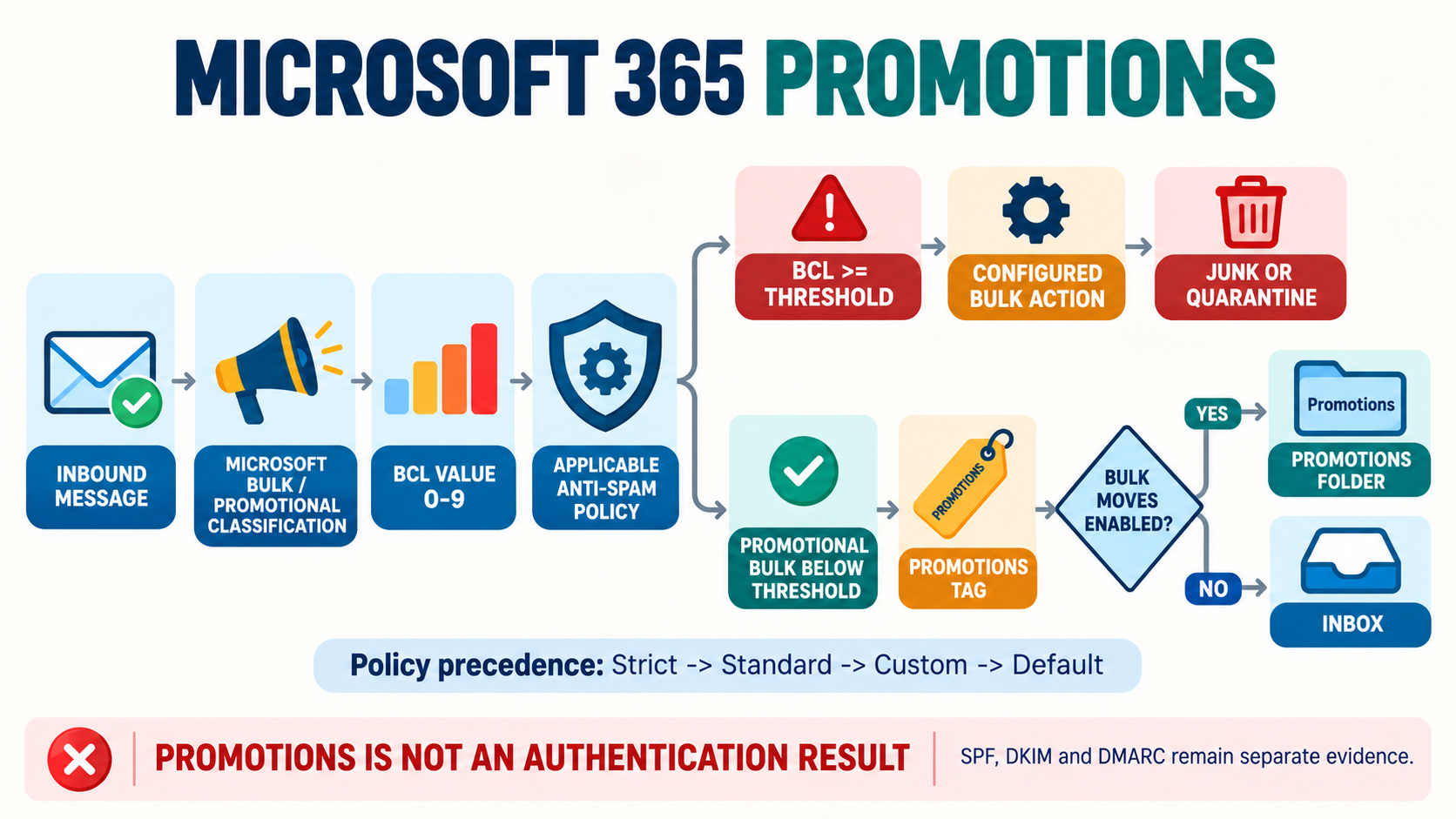
Microsoft 365 Promotions is a recipient-tenant classification and mailbox-routing feature, not a sender-controlled category. Since July 2026, Microsoft documents automatic Promotions tagging for messages it identifies as promotional bulk, regardless of BCL value. Delivery to the regular Promotions folder is a separate, administrator-controlled outcome for qualifying mail below the applicable BCL threshold when BulkMovesEnabled is On.
What changed in July 2026
Microsoft says all messages identified as bulk and promotional in nature automatically receive the Promotions tag as of July 2026, regardless of BCL. The tag does not itself move a message. When the applicable anti-spam policy has BulkMovesEnabled set to On, qualifying promotional bulk that would otherwise reach the Inbox is delivered to a Promotions folder.
The maintained feature page said rollout, including security operations center experiences, should reach all organizations by the end of October 2026. However, current configuration and PowerShell documentation still label BulkMovesEnabled as Preview and warn that it might not be available in every organization. Verify the setting in the actual tenant instead of treating the calendar as proof of availability.
Place Promotions in the correct layer
| Layer | Signal or control | What it decides | What it does not prove |
|---|---|---|---|
| Authentication | SPF, DKIM, DMARC and composite authentication | Whether asserted identities can be authenticated and aligned | Wantedness, BCL, Promotions tagging or inbox visibility. |
| Bulk classification | Microsoft bulk and promotional classification plus BCL 0 through 9 | Whether the message is bulk and how complaint-prone the bulk source appears | That the message is malicious, unwanted by every recipient or above the tenant threshold. |
| Tenant action | Applicable anti-spam policy, BulkThreshold, BulkSpamAction and BulkMovesEnabled | The action for the recipient after Microsoft verdicts | A universal outcome across tenants or recipients. |
| Mailbox presentation | Promotions tag, regular Promotions folder, Inbox rules and learned user actions | Where qualifying below-threshold promotional bulk is presented | SMTP rejection, Junk placement or a Gmail-style category tab. |
| Business outcome | Read, click, conversion, complaint and unsubscribe evidence | Whether recipients found value in the stream | Why one specific message was classified without technical evidence. |
Promotions is not Microsoft authentication, Focused Inbox, Gmail tabs, spam confidence level or an SMTP response. SMTP acceptance can succeed before every outcome described here. A sender normally cannot see the recipient tenant setting or named mailbox folder from its delivery log.
The complete decision path
Inbound message
  -> Microsoft authentication and threat filtering
  -> bulk / promotional classification
  -> BCL value 0 through 9
  -> first applicable anti-spam policy for this recipient
       |-- BCL >= BulkThreshold
       |     -> BulkSpamAction (Junk, quarantine or configured alternative)
       |
       `-- promotional bulk below BulkThreshold
             -> Promotions tag
             -> BulkMovesEnabled On?
                    |-- yes -> regular Promotions mailbox folder
                    `-- no  -> normal Inbox path

Mailbox rules, allowlists, accepted domains and learned user movement can alter
the final presentation. Malware, phishing, spam and other controls still apply.
This is an explanatory operating model, not a claim that Microsoft exposes every model feature. It identifies the control boundaries an administrator can verify. Other threat protections can stop, quarantine or remediate a message independently.
BCL measures bulk complaint propensity
| BCL | Microsoft description | Operator interpretation | Do not conclude |
|---|---|---|---|
| 0 | The message is not from a bulk sender | BCL itself does not identify it as bulk, although Microsoft documentation notes a message identified as bulk can still have BCL 0 in the Promotions workflow | BCL 0 is an allowlist, Primary placement or proof of wanted mail. |
| 1, 2 or 3 | Bulk sender that generates few complaints | Below common default thresholds; can still be promotional and tagged | The message must remain in the Inbox. |
| 4, 5, 6 or 7 | Bulk sender with a mixed number of complaints | Outcome depends on the applied threshold and action; values near the threshold need recipient-policy context | A single BCL value has the same outcome in every tenant. |
| 8 or 9 | Bulk sender that generates many complaints | High complaint propensity and likely to meet normal bulk thresholds | BCL is the same as SCL, phishing or malware. |
Microsoft uses internal and external sources to identify bulk mail and assign BCL. A higher value means bulk traffic is more likely to generate complaints. BCL is not a linear probability, and averaging it across unrelated senders can hide a failing source. Preserve the distribution by sender identity, recipient policy and time window.
The main Microsoft page contains an important edge statement: the Promotions workflow can include messages with BCL 0 that Microsoft nevertheless identified as bulk. Do not implement a consumer that assumes BCL:0 always means the promotional classifier was false.
Threshold and action remain separate from Promotions
| Policy type | Documented threshold | Default at/above-threshold action | Promotions implication |
|---|---|---|---|
| Strict preset security policy | 5 | Quarantine | BulkMovesEnabled is currently Off; recipients need exclusion from the preset before a custom opt-in policy can apply. |
| Standard preset security policy | 6 | Junk Email | BulkMovesEnabled is currently Off; the preset takes precedence over custom and default anti-spam policies. |
| New custom anti-spam policy | 7 by default; configurable 1 through 9 | Junk Email by default; configurable | Can enable BulkMovesEnabled for a bounded recipient group when the tenant exposes the setting. |
| Default anti-spam policy | 7 by default; configurable 1 through 9 | Junk Email by default; configurable | Can act as an opt-in policy only for recipients not matched by a higher-precedence policy. |
BulkThreshold accepts 1 through 9. A message at or above that value invokes BulkSpamAction. Raising the threshold permits more bulk through that action boundary; lowering it captures more. Neither operation changes the sender identity or guarantees how a below-threshold message is presented.
Only the first applicable anti-spam policy wins
| Order | Policy | Operational consequence |
|---|---|---|
| 1 | Strict preset security policy | Wins when the recipient is in scope; its anti-spam settings are not merged with custom policy settings. |
| 2 | Standard preset security policy | Wins over custom and default anti-spam policies for covered recipients. |
| 3 | Custom anti-spam policies | First matching custom policy wins; priority 0 is highest among custom policies. |
| 4 | Default anti-spam policy | Always last and covers recipients not matched earlier. |
Microsoft does not merge anti-spam settings from multiple matching policies. This is the most common reason an apparently correct custom Promotions policy has no effect. A recipient covered by Strict or Standard receives the preset anti-spam settings before any custom policy is considered.
Inventory policy and recipient scope with PowerShell
# Inventory the policy objects. Run in Exchange Online PowerShell.
Get-HostedContentFilterPolicy |
  Select-Object Name, IsDefault, BulkThreshold, BulkSpamAction, BulkMovesEnabled

# Map custom policy rules to recipient scopes and priorities.
Get-HostedContentFilterRule |
  Select-Object Name, State, Priority, HostedContentFilterPolicy,
    SentTo, SentToMemberOf, RecipientDomainIs,
    ExceptIfSentTo, ExceptIfSentToMemberOf, ExceptIfRecipientDomainIs

# Example only: enable the feature after confirming the parameter exists,
# the intended recipients are not captured by Standard or Strict first,
# and the policy has a tested rollback.
Set-HostedContentFilterPolicy -Identity "Promotions Opt-in" `
  -BulkMovesEnabled On
Capture the output before and after a change. Also record preset-policy assignments and exclusions in the Defender portal. The content-filter policy contains settings; the content-filter rule contains recipient scope and custom priority. Reviewing only one object gives an incomplete explanation.
Design opt-in and opt-out groups deliberately
Microsoft documents mail-enabled security groups for opt-in and opt-out populations. If users are allowed to join or leave those groups, group membership can provide self-service control. An opt-in group is required when all intended users are otherwise covered only by Standard or Strict presets, because those presets currently have Bulk moves disabled and outrank custom policies.
Exclude the intended opt-in recipients from the preset policy, reproduce every required anti-spam setting in the new custom policy, enable Bulk moves there, and give that policy an appropriate custom priority. Microsoft recommends a minimum BCL threshold of 5 for the opt-in policy. Do not casually mix Users and Groups in include and exclude assignments; follow Microsoft's scope rules and test the effective policy for representative recipients.
Tag visibility and folder delivery have different client support
| Experience | Outlook on the web | New Outlook for Windows | iOS / Android | Classic Outlook | Outlook for Mac |
|---|---|---|---|---|---|
| Visible Promotions tag on bulk messages | Supported | Supported | Not documented | Not documented | Not documented |
| Promotions tag usable in Inbox rules | Supported | Supported | Not documented | Not documented | Not documented |
| Below-threshold qualifying mail moved to Promotions folder | Supported | Supported | Supported | Supported | Supported |
The folder is server-side mailbox state, so supported Outlook clients can show the delivered folder even when they do not expose the Promotions tag as a UI label or Inbox-rule condition. A mobile screenshot without a visible tag does not prove that Microsoft failed to classify the message.
Promotions is a regular mailbox folder
| Condition | Documented behavior | Diagnostic consequence |
|---|---|---|
| First qualifying delivery after policy application | Promotions folder is created | Absence before the first qualifying message is not proof that policy assignment failed. |
| Existing unrelated folder named Promotions | Exchange creates and uses Promotions(1) | Do not validate only by folder display name. |
| Folder renamed or moved | Placement continues to use that folder | Folder identity matters more than its current name or location. |
| Folder soft deleted | Qualifying mail is delivered to the folder in Deleted Items | A user can appear to lose mail while routing is still functioning. |
| Folder hard deleted | Current Microsoft documentation says it is recreated after a few minutes | Retest against the maintained documentation because this behavior changed during rollout. |
| BulkMovesEnabled turned Off | Folder remains but automatic movement stops | A remaining folder is not evidence that the setting is still On. |
| User Inbox rule acts on bulk mail | The user rule takes precedence over BulkMovesEnabled placement | Investigate mailbox rules before blaming the tenant policy. |
| Sender allowlisted or sender domain is an accepted domain | Qualifying bulk is delivered to Inbox; accepted-domain messages are not Promotions-tagged | Internal and allowlisted test messages are poor negative controls for external sender behavior. |
This is unlike Gmail's Promotions tab. Microsoft describes a regular folder with a durable mailbox identity. Administrators and support teams need to investigate its lifecycle, user rules and location rather than searching only for a fixed folder name.
User movement teaches future handling
Microsoft says the system learns when users move messages into or out of Promotions and remembers the action for future messages. That makes presentation partly recipient-specific. Two users under the same policy can diverge after different mailbox actions, and a seed mailbox with years of artificial behavior is not representative of the population.
Measure initial policy behavior with newly prepared controls and then measure real-user behavior separately. Do not reset or manipulate user state merely to produce a cleaner experiment.
Use the transport exception only for a bounded case
# Conceptual mail-flow rule behavior documented by Microsoft:
# Apply only to a narrowly approved sender/recipient condition.
# Set this internal header to suppress the Promotions tag.
X-MS-Exchange-Organization-BulkStamping: 0

# Important rule properties:
# - Do not select "Stop processing more rules".
# - Add explicit exceptions where tagging should remain.
# - The former preview rule that stamped value 1 is no longer required.
# - The header is removed before mailbox delivery.
Microsoft documents a mail flow rule that sets X-MS-Exchange-Organization-BulkStamping to 0 to prevent Promotions tagging for specified senders or recipients. This is an internal transport header and is removed before mailbox delivery, so its absence from received headers is expected. The older Preview-era rule that set the header to 1 is no longer required.
Use the exception for a proven misclassification with narrow conditions, an owner, expiry and regression test. Do not create a broad domain exception to improve marketing visibility. Microsoft also says not to select Stop processing more rules, because unrelated mail-flow controls must continue.
Read BCL and category evidence correctly
Authentication-Results: spf=pass ...; dkim=pass ...; dmarc=pass ...
X-Microsoft-Antispam: BCL:5;
X-Forefront-Antispam-Report: ...;CAT:BULK;...

# Do not expect this internal transport header in the delivered message:
X-MS-Exchange-Organization-BulkStamping: 0
X-Microsoft-Antispam contains BCL. X-Forefront-Antispam-Report contains filtering evidence such as CAT:BULK. Authentication-Results carries SPF, DKIM and DMARC evidence. Keep these fields separate. A DMARC pass does not override the recipient's bulk policy, and a high BCL does not mean DMARC failed.
Measure tenant outcomes with Advanced Hunting
EmailEvents
| where Timestamp > ago(14d)
| where EmailDirection == "Inbound"
| extend SenderDomain = tostring(split(SenderFromAddress, "@")[1])
| summarize
    Messages = count(),
    Recipients = dcount(RecipientEmailAddress),
    FirstSeen = min(Timestamp),
    LastSeen = max(Timestamp)
  by SenderDomain, BulkComplaintLevel, DeliveryAction,
     DeliveryLocation, EmailActionPolicy, EmailActionPolicyGuid
| order by Messages desc
The EmailEvents table exposes BulkComplaintLevel, delivery action and location, policy name and policy GUID when the tenant has the required Defender data. Use NetworkMessageId for message-level follow-up. DeliveryLocation can report Inbox/Folder, which does not necessarily identify the exact named mailbox folder, so confirm Promotions placement in a controlled mailbox.
Do not retain subjects and recipient addresses in broad dashboards without need. Aggregate by approved sender domain and policy, restrict raw-data access, and set a retention period appropriate for operational diagnosis.
What an external sender can and cannot observe
An external sender can observe Microsoft SMTP acceptance, deferrals and rejections, its own authentication, complaints and business outcomes. It normally cannot query a customer tenant's BulkMovesEnabled, effective anti-spam policy, user rules, learned movement or named folder. A seed account can provide evidence for that account only.
Do not promise “Inbox” or “not Promotions” placement. Maintain permission, low complaint rates, stable aligned identities, useful segmentation and honest message purpose. If a customer reports misplaced operational mail, request the full received headers, NetworkMessageId, recipient tenant, observed folder and timestamp, then let the tenant administrator determine the applicable policy.
Keep transactional and promotional purposes distinct
Do not hide offers inside receipts, password resets or security alerts to escape promotional classification. Separate message purpose, From identity, templates, cadence and suppression policy where appropriate. A mixed-purpose message can create both recipient confusion and unreliable classification evidence.
Promotions placement is not automatically a deliverability failure. For genuinely promotional mail it can be an accurate, user-manageable destination. Evaluate complaints, unsubscribes, conversions and support impact instead of optimizing only for a folder label.
Use a controlled test matrix
| Test case | Required setup | Expected result | Evidence to retain |
|---|---|---|---|
| Below threshold, moves Off | External promotional bulk, BCL below threshold, BulkMovesEnabled Off | Promotions tag where the client exposes it; normal Inbox path unless another rule acts | Headers, effective policy, tag screenshot and folder. |
| Below threshold, moves On | Same message and policy except BulkMovesEnabled On | Promotions tag and delivery to the Promotions folder | NetworkMessageId, policy GUID, folder identity and client. |
| Exactly at threshold | BCL equals BulkThreshold | Configured BulkSpamAction applies because the comparison is greater than or equal | BCL, threshold, action, policy and resulting location. |
| Accepted-domain sender | Sender domain configured as an accepted domain in the tenant | Message is not tagged Promotions and remains on the Inbox path unless another control acts | Accepted-domain configuration and received-message identity. |
| Allowlisted bulk sender | Narrow documented sender allow entry | Would-be Promotions-folder mail is delivered to Inbox | Allow-entry type, scope, expiry, policy and message evidence. |
| BulkStamping value 0 | Narrow mail-flow rule without Stop processing more rules | Promotions tag is suppressed for the matching case | Rule export, trace, message outcome and negative control. |
| User Inbox rule match | Rule that acts on identified bulk | User rule takes precedence over BulkMovesEnabled movement | Mailbox-rule export, folder identity and before/after test. |
| Preset and custom overlap | Recipient included in Standard or Strict and a custom opt-in policy | Preset anti-spam policy wins; custom BulkMovesEnabled setting is ignored | Tests: Email Threat Policies output and all relevant scopes. |
Run these cases with a purpose-built external test sender and non-production recipients. Keep sender IP, authenticated domains, From address, MIME, subject, content and send time as stable as possible. A real BCL value is provider-assigned and cannot be requested by a header, so collect enough samples to find suitable values rather than forging Microsoft headers. Never test quarantine or spam actions against executives or production support mailboxes.
The strongest comparison is a pair of recipients receiving the same NetworkMessageId expansion while differing in one documented control, such as effective anti-spam policy. When this is not possible, send adjacent messages and record every difference. Screenshots alone are insufficient because a renamed folder, user rule or client view can hide the actual mailbox state.
Allowlists and accepted domains are not sender remediation
Microsoft documents Inbox delivery for would-be Promotions mail when the bulk sender is allowlisted, and no Promotions tagging for messages from accepted domains. These are tenant-side exceptions, not improvements to the sender's BCL or reputation. A broad allowed-domain entry can weaken protection against compromised or spoofed identities and can make test results unrepresentative of external recipients.
Prefer reporting a legitimate false positive to Microsoft and correcting consent, complaints, authentication or list quality when the evidence points there. If a tenant exception is necessary, use the narrowest supported identity, document why normal filtering is incorrect, require authentication, assign an expiry and retest after removal. Do not tell an external sender that one customer allowlisted it as proof of general deliverability.
Do not try to game the classifier
Changing marketing language into a fake reply, removing a truthful unsubscribe link, hiding the commercial purpose or mixing an offer into a security notice does not create a supported Inbox-placement method. It weakens recipient expectation, compliance evidence and stream-level diagnosis. Likewise, rotating domains or IPs discards reputation history without changing the audience or complaint cause.
Use accurate subjects, recognizable From identities, clear preference controls and prompt suppression. If a message is genuinely promotional, judge the program by wantedness and downstream value rather than disguising its purpose. Microsoft does not publish a sender header or content recipe that requests exemption from Promotions.
Troubleshoot the first divergent state
1. Preserve one affected NetworkMessageId and full received headers.
2. Confirm whether the outcome is Junk, Quarantine, Inbox/Folder or a named folder.
3. Read BCL and CAT values; do not substitute SCL for BCL.
4. Resolve the recipient's first applicable anti-spam policy at delivery time.
5. Compare BCL with that policy's BulkThreshold.
6. If at/above threshold, inspect BulkSpamAction.
7. If below threshold, inspect Promotions classification and BulkMovesEnabled.
8. Check preset-policy overlap, custom priority, allowlists and accepted domains.
9. Check user Inbox rules, folder state and learned movement.
10. Compare a nearby control recipient before changing tenant-wide policy.
Compare an affected recipient with a nearby control that has the same sender, message and time but a known policy difference. Do not rotate domains, IPs or creative until the first divergent state is identified. If the issue is a recipient policy, sender infrastructure changes will not repair it.
Evidence map
| Evidence | Where to collect it | What it establishes | Limitation |
|---|---|---|---|
| BCL value | X-Microsoft-Antispam header or EmailEvents.BulkComplaintLevel | Microsoft-assigned bulk complaint level for the message | Does not by itself show the applied threshold or destination folder. |
| Filtering category and verdict | X-Forefront-Antispam-Report, email entity or EmailEvents | Bulk, spam or other filtering evidence | Promotions transport stamping is internal and removed before mailbox delivery. |
| Applied anti-spam policy | Policy inventory, Tests: Email Threat Policies and EmailEvents.EmailActionPolicy | Which policy and action governed the recipient | Policy configuration captured later may differ from delivery-time state. |
| Initial and latest location | Message trace, Explorer, EmailEvents and controlled mailbox | Whether Microsoft recorded Inbox/Folder, Junk, Quarantine or another state | Inbox/Folder does not necessarily name the exact mailbox folder. |
| Promotions tag and folder | Supported Outlook client plus controlled mailbox evidence | Actual recipient presentation | Not visible in every client and not reliably inferable from sender logs. |
| User learning and Inbox rules | Controlled account, mailbox rules and repeat observations | Why two recipients with the same tenant policy can diverge | The learning model is provider-controlled and not fully exposed. |
Common incorrect conclusions
- “BCL 5 means Junk.” Only if 5 meets or exceeds the effective recipient threshold and the bulk action produces Junk.
- “The message has a Promotions tag, so it is in the Promotions folder.” Tagging is automatic for identified promotional bulk; movement requires the setting and other conditions.
- “DMARC passed, so Promotions is a bug.” Authentication and promotional bulk classification answer different questions.
- “Our custom policy is enabled, so it applies.” Strict or Standard can win first, or a higher-priority custom policy can capture the recipient.
- “The folder exists, so routing is enabled.” Turning the setting Off leaves the folder behind.
- “The sender cannot see the internal header, so no rule acted.” Microsoft removes the BulkStamping header before mailbox delivery.
- “All Outlook clients show the tag.” Microsoft documents tag visibility and Inbox-rule support only for specific clients.
- “Promotions equals spam.” Below-threshold promotional mail is precisely the population this feature is designed to organize outside Junk.
Safe tenant rollout
- Confirm the setting exists in the tenant and capture the documentation review date.
- Inventory Strict, Standard, custom and default policy scopes.
- Create a small mail-enabled opt-in group and exclude it from conflicting presets.
- Clone all required anti-spam controls into the custom policy; do not copy only the bulk settings.
- Set an intentional threshold and bulk action, then enable Bulk moves.
- Test low, near-threshold and at-threshold messages using controlled external sources.
- Validate tag visibility, folder placement, user rules, soft-delete behavior and mobile clients.
- Monitor BCL distribution, Junk, quarantine, Inbox/Folder and recipient feedback.
- Expand in stages with support documentation and an opt-out path.
- Rollback by setting BulkMovesEnabled Off or removing the scoped assignment; remember the folder remains.
Production monitoring and alerting
- Recipients assigned to each preset, custom and default policy.
- Changes to BulkThreshold, BulkSpamAction, BulkMovesEnabled, rule scope and priority.
- Message counts by BCL, sender domain, policy GUID, action and delivery location.
- Sudden shifts from Inbox/Folder to Junk or quarantine near a policy deployment.
- Growth in sender exceptions, allowlists and BulkStamping rules.
- Support cases for missing mail, Promotions(1), Deleted Items placement and client inconsistency.
- Policy-test failures where the expected and effective policy differ.
- Complaint, unsubscribe and business-outcome trends for promotional streams.
Assign ownership across tenant and sender teams
Security administrators own policy scope, threshold, action and exception risk. Exchange administrators own transport rules, accepted domains, mailbox behavior and trace evidence. Support teams need client-specific folder and rule diagnostics. Deliverability and marketing teams own permission, complaints, purpose, cadence and sender evidence. No single team can infer the complete result from its own dashboard.
Every change record should name the policy owner, affected population, business reason, evidence window, rollback operator and exception expiry. When an external sender and recipient tenant investigate together, exchange NetworkMessageId, UTC time and sanitized headers rather than customer lists or screenshots containing unrelated mailbox content.
Current status and documentation conflict
As reviewed on November 19, 2026, Microsoft's main bulk-detection page says the feature rollout should have completed by the end of October. The anti-spam configuration page and Set-HostedContentFilterPolicy reference still call BulkMovesEnabled Preview and potentially unavailable in some organizations. Treat actual tenant capability and maintained documentation as authoritative for deployment.
This article describes Microsoft 365 enterprise tenant behavior. It does not claim the same controls for consumer Outlook.com accounts, nor does it describe Gmail Promotions tabs or Focused Inbox classification.
Primary Microsoft references
- Bulk email detection and BCL: BCL values, thresholds, July 2026 Promotions tagging, folder behavior, client support and exception rule.
- Configure anti-spam policies: BulkMovesEnabled configuration, recipient scope and custom policy priority.
- Set-HostedContentFilterPolicy: PowerShell parameters for BulkMovesEnabled, BulkThreshold and BulkSpamAction.
- Troubleshoot anti-spam policies: Effective policy order, first-match behavior and policy-testing workflow.
- Anti-spam message headers: BCL and filtering evidence in Microsoft message headers.
- EmailEvents advanced hunting schema: BulkComplaintLevel, delivery, policy and authentication fields for tenant analysis.
- Tune bulk-mail filtering: Threshold defaults, bulk actions and operational tuning guidance.