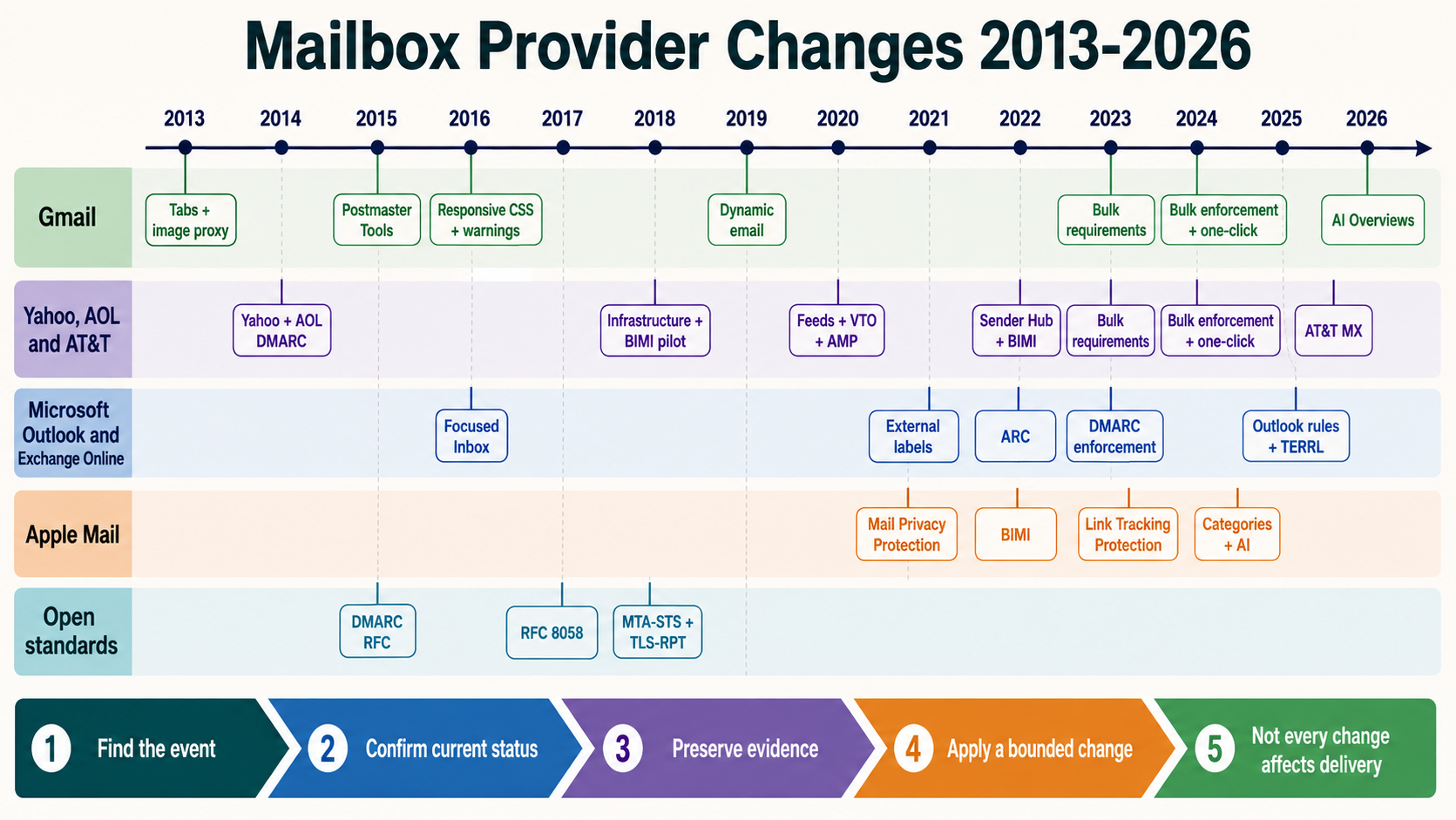
Outlook Focused and Other Inbox in 2016: A New Visibility Layer
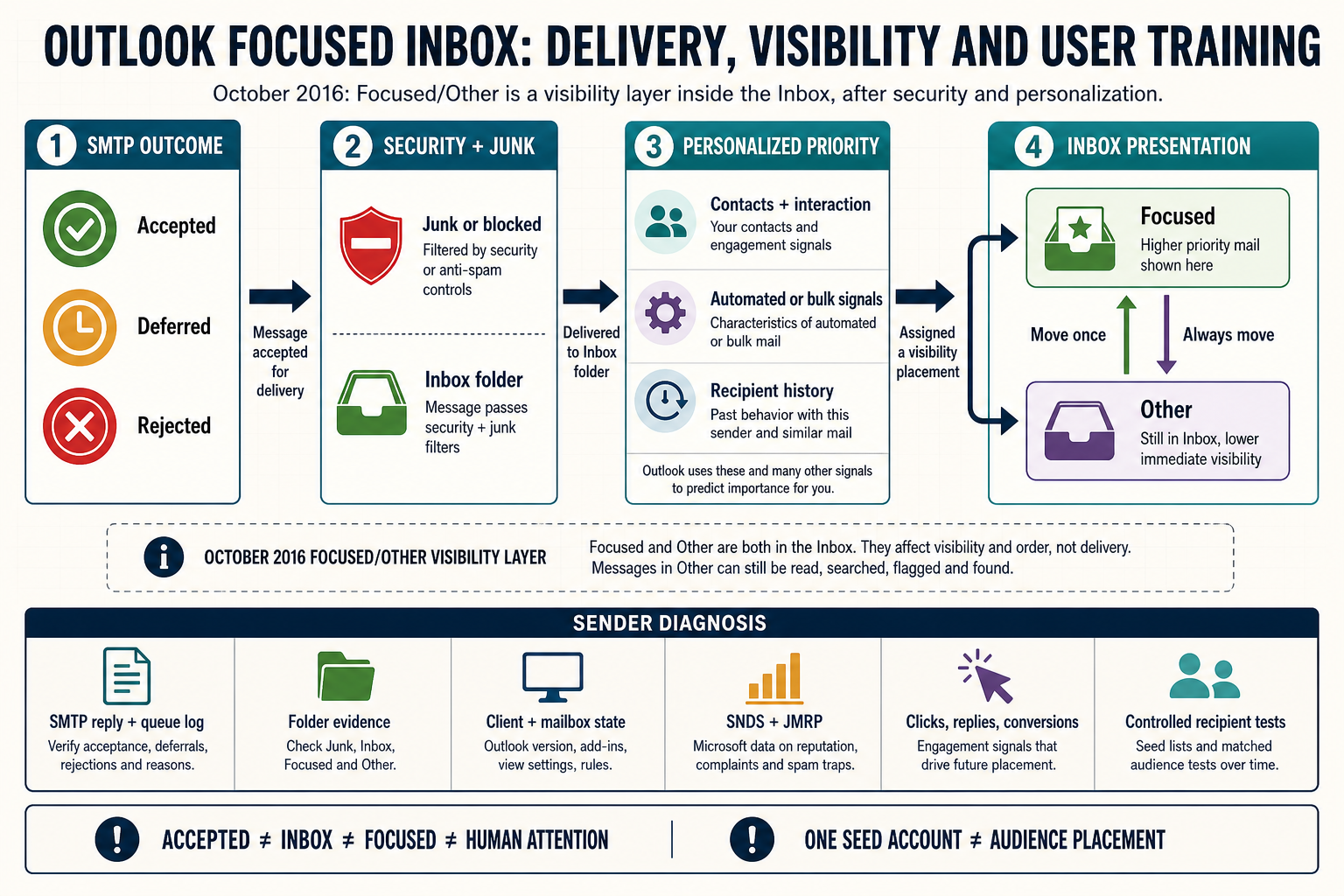
On October 14, 2016, Microsoft published administrative guidance for bringing Focused Inbox to Office 365 and Outlook. Focused Inbox divided accepted inbox mail into Focused and Other views, using personalized signals and the classification technology associated with Clutter. The change added a visibility layer after transport and filtering. An email could be accepted, avoid junk, remain in the Inbox folder and still receive less immediate attention in Other. For deliverability teams, that distinction matters because a successful SMTP response cannot identify the tab a particular recipient sees.
The dated mailbox-provider change
| Event field | Verified value | Why it matters |
|---|---|---|
| Historical event date | October 14, 2016 | This is the provider-change date, not the NitWings publication date. |
| Mailbox provider | Outlook.com / Microsoft 365 | The affected provider estate determines which recipient cohorts require separate evidence. |
| Change area | Inbox organization | This identifies whether the change altered authentication, filtering, visibility, measurement or sender operations. |
| Current status | active-with-user-training-and-client-controls | Historical instructions are interpreted against the feature or standard that exists now. |
Microsoft had announced expanded Focused Inbox availability in July 2016. The October Exchange Team publication was an operational milestone because it explained tenant and mailbox controls, client dependencies and the transition from Clutter. Rollout was not a single global switch. Availability depended on the mailbox service, Outlook surface, update channel, authentication support and administrative choice.
Clutter moved lower-priority messages into a separate folder. Focused Inbox retained the Inbox folder and presented two views, Focused and Other. Microsoft described Focused as the place for messages most likely to matter to the individual and Other as accessible but out of the way. Existing items in Clutter were not automatically reclassified into the new tabs.
The classifier was personalized. Microsoft’s public explanations cite contacts and messages with which the recipient interacts, while filtering noisy, automated or bulk sources. Recipients could move one message or always move a sender between the two views. Those controls meant two people receiving the same campaign could legitimately see different outcomes.
This was not a new SMTP disposition and not a public sender certification program. Focused and Other operated after a message reached the mailbox. The feature did not replace junk filtering, malware controls, block decisions or throttling. A sender troubleshooting low response therefore needed to keep acceptance, junk placement, inbox tab and human attention as separate states.
How the system worked before the change
Before Focused and Other, Outlook users generally saw a single Inbox view unless they used rules, Sweep, categories or Clutter. Clutter learned which messages appeared less important and moved them into the Clutter folder. That folder boundary made the classification visible to support teams but also required users to remember to visit another folder.
Campaign reporting commonly treated Microsoft delivery as a binary outcome. A 250 response became “delivered,” and a seed message in the Inbox folder became “inbox.” Neither observation described how prominent the message was to each recipient. Rules, reading order, notifications and mobile clients could already alter attention, but Focused Inbox made prioritized presentation a standard product feature.
Senders sometimes attempted to infer placement from global opens. That method was weak because opens mix recipient interest, client image behavior, timing, device state and classification. A lower open rate at Outlook could indicate Other placement, junk placement, audience fatigue, a rendering defect or simply a less relevant offer.
Clutter-specific guidance could not be carried forward without qualification. A separate folder and an Inbox tab are different user experiences. A message in Other remains in Inbox and can be reached by switching tabs. Any measurement or support script needed to ask which interface and which view the recipient used.
What changed on the provider side
Focused Inbox placed two tabs above the message list. Microsoft assigned messages considered most important to Focused and left the rest in Other. The classifier considered individual interaction patterns and sources such as automatically generated or bulk mail. The service could therefore treat a receipt, newsletter and person-to-person thread differently for different recipients.
User training became a direct input. “Move to Focused” and “Always move to Focused” could correct an Other classification; corresponding controls could move unwanted senders the other way. This was not equivalent to a universal sender rule. A recipient preference applied within that mailbox and did not guarantee the same result elsewhere.
The Clutter transition required administration. Microsoft provided tenant and mailbox controls and rolled support across Outlook products over time. Some users kept Clutter while others received Focused Inbox, and client versions did not all expose the feature simultaneously. Cross-client seed testing during rollout could therefore compare different presentation systems.
For email marketers, the practical change was an additional decision boundary: accepted mail first faced security and junk controls, then Inbox mail could be prioritized into Focused or Other. The correct response was not to disguise bulk mail as personal correspondence. It was to improve permission, expectation, relevance and consistent identity while measuring Microsoft cohorts carefully.
Message path before and after
Before
Sender and outbound MTA
    |
    v
Microsoft SMTP acceptance, throttling or rejection
    |
    v
Security and junk evaluation
    |
    +----> Junk or blocked
    |
    +----> Inbox
              |
              +----> Optional Clutter classifier ----> Clutter folder
              +----> Main Inbox view
After
Sender and outbound MTA
    |
    v
Microsoft SMTP acceptance, throttling or rejection
    |
    v
Security and junk evaluation
    |
    +----> Junk or blocked
    |
    +----> Inbox folder
              |
              v
       Personalized priority classifier
              |
              +----> Focused tab ----> earlier recipient attention possible
              +----> Other tab ------> still accessible, lower immediate visibility
                         ^
                         |
              recipient move or always-move training
Who and what the change affected
| Traffic or stakeholder | What changed | Required interpretation |
|---|---|---|
| Outlook.com recipients | Inbox mail could be presented in Focused or Other according to personalized signals. | One mailbox or seed cannot represent the audience. |
| Microsoft 365 cloud mailboxes | Availability depended on service rollout, client and tenant controls. | Record mailbox type, client and feature state during tests. |
| Bulk and automated senders | Their mail could be more likely to appear in Other when it was not individually important. | Do not imitate personal mail; improve permission and relevance. |
| Transactional programs | Important automated mail still depended on recipient history and message context. | Use distinct identities and make purpose immediately clear. |
| Tenant administrators | They gained controls for transition and feature management. | Coordinate help-desk scripts with the tenant configuration. |
| Deliverability analysts | Inbox placement gained a post-delivery visibility state. | Separate SMTP, junk, tab and engagement evidence. |
Effect on delivery, placement and recipient visibility
Other placement does not mean that Microsoft rejected or spam-foldered a message. The message remains in the Inbox folder, but it may not appear in the default view and may generate different notification behavior. The effect is visibility and attention, not transport delivery. Reporting should avoid calling Other a failure without describing the business outcome being measured.
Focused placement is not guaranteed by SPF, DKIM, DMARC, a dedicated IP or a certification program. Authentication makes identity assessable, while tab selection is personalized. Strong reputation and wanted mail support the overall relationship, but no public technical header requests Focused placement.
Attempts to force the classifier can harm the program. Adding conversational wording, fake reply prefixes or misleading urgency may increase complaints and erode trust. Mixing receipts with promotions can make a critical transactional stream look noisy. Stable message categories, accurate subjects and predictable From identities create better recipient expectations.
A sudden Microsoft-only engagement drop needs layered diagnosis. First verify SMTP acceptance and enhanced status codes. Then examine junk evidence and controlled recipient tests. Only after confirming Inbox placement should the team consider Focused versus Other, while also checking rendering, timing, list composition and offer relevance.
Recipient actions can teach the mailbox. Asking engaged customers to find a message and choose “Always move to Focused” can be appropriate in an onboarding or support context, but it must not become a deceptive mass instruction. The sustainable signal is repeated wanted interaction, not a one-time manipulation.
Effect on measurement and diagnosis
No standard sender log reports a recipient’s Focused or Other tab. SMTP telemetry stops at acceptance, deferral or rejection. Microsoft SNDS and JMRP provide IP traffic and complaint evidence, not per-recipient tab labels. A dashboard that claims exact Focused placement for the whole audience needs a disclosed, valid measurement method.
Controlled accounts can reveal the interface and classifier state for those accounts. Use real Outlook.com and Microsoft 365 test mailboxes with documented history, but do not train every seed identically. A pristine seed, an engaged seed and a low-engagement seed can illustrate personalization without being treated as a market-share estimate.
Campaign cohorts should distinguish Microsoft-hosted destination domains, message stream, From identity, recipient tenure and prior engagement. Compare delivered-event rates, clicks, conversions, replies, complaints and unsubscribes. Open data alone is too sensitive to image privacy, caching and client behavior to diagnose a tab reliably.
Support evidence is valuable when collected precisely. Ask whether the message is in Junk, Focused, Other, a rule-created folder or search results. Capture the received headers, client, timestamp and screenshot while minimizing personal data. “Not in inbox” often means “not in the view I opened.”
Any intervention requires a control group and observation window. If the sender changes frequency, content, From name and audience selection simultaneously, an engagement improvement cannot be assigned to tab movement. Preserve rollback criteria and protect transactional mail from marketing experiments.
Advantages for email marketers
| Potential advantage | When the advantage is real | Evidence to verify |
|---|---|---|
| Reduced recipient overload | The classifier reflects the individual’s real priorities. | Moves, replies, reading and business completion by cohort. |
| Accessible secondary mail | Other remains in the Inbox rather than a separate hidden folder. | Recipient support confirms the message is discoverable. |
| Direct preference training | Recipients use move or always-move controls intentionally. | Future samples for the same mailbox follow the preference. |
| Cleaner sender segmentation | Programs separate critical, lifecycle and promotional identities. | Stream-level complaints and outcomes become diagnosable. |
| Better visibility vocabulary | Teams distinguish delivery, folder, tab and attention. | Reports state the evidence and layer explicitly. |
Disadvantages and operational risks
| Cost or risk | How it appears | Control |
|---|---|---|
| Other is mislabeled as spam | An accepted Inbox message is reported as a delivery failure. | Verify folder and tab before escalation. |
| Seed result is generalized | One trained account becomes a claimed provider-wide rate. | Use diverse controls and label the inference limit. |
| Bulk mail imitates personal mail | Copy and headers are manipulated to chase Focused. | Preserve honest identity and expected content. |
| Critical and promotional streams mix | Receipts inherit low-priority audience signals. | Use purpose-specific From identities and content. |
| Client rollout is ignored | Tests compare Clutter, Focused and single-inbox interfaces. | Record client, mailbox and feature state. |
| Open rate becomes a tab detector | Privacy and relevance effects are misdiagnosed. | Use multi-signal cohort evidence. |
What email teams needed to do at the time
- Map the rollout. Record tenant controls, mailbox eligibility, client versions and whether users still had Clutter.
- Separate message streams. Give transactional, lifecycle and promotional programs stable identities and expectations.
- Update support scripts. Ask recipients to check Focused, Other, Junk and Clutter rather than saying only “check spam.”
- Build varied test accounts. Preserve different interaction histories instead of training every seed the same way.
- Protect honest presentation. Do not add misleading reply or urgency cues to imitate interpersonal mail.
- Track recipient movement. Treat move and always-move actions as mailbox-specific training.
- Baseline Microsoft cohorts. Preserve acceptance, complaint and outcome data before changing programs.
- Coordinate administrators and marketers. Tenant rollout decisions changed what users and help desks could see.
What email teams should do now
- Keep Focused and Other in the diagnostic model. They remain current Outlook presentation states.
- Start with SMTP truth. Retain full Microsoft responses, queue IDs, route and timestamps before discussing visibility.
- Check current Microsoft sender signals. Use SNDS, JMRP, complaint data and received headers for the layers they actually cover.
- Measure wantedness by stream. Use clicks, replies, conversions, complaints, unsubscribes and retention, not open rate alone.
- Maintain distinct From identities. Prevent low-value promotions from sharing the exact identity of critical account mail.
- Test Outlook surfaces. Include web, Windows, mobile and relevant Microsoft 365 environments with documented settings.
- Teach recipients only when useful. Provide honest “move to Focused” guidance for requested critical communications.
- Use controlled experiments. Change one relevant variable, retain a holdout and define rollback.
- Respect personalization. Do not publish one universal Focused-placement percentage from seeds.
- Keep content accessible in either tab. Clear identity, purpose and action matter after the recipient finds the message.
Worked deliverability scenario
A subscription service sees a 22 percent drop in Outlook opens after a campaign redesign. SMTP acceptance remains stable, and no matching rise appears in Microsoft complaint or bounce categories. The first explanation offered is that Microsoft moved the campaign to Other.
The team checks controlled accounts. An engaged Outlook.com account shows Focused, a low-engagement account shows Other, and a Microsoft 365 account has Focused Inbox disabled. All three messages are in the Inbox folder. The redesign also moved the primary call to action below a broken mobile module.
Instead of claiming a provider-wide tab penalty, analysts segment recipients by prior engagement and client outcome. They restore the accessible mobile layout, reduce frequency for inactive subscribers and keep the same authenticated From identity. A holdout receives the earlier design.
Clicks and conversions recover in both Focused and Other cohorts while complaints decline among the reduced-frequency group. The result shows why tab evidence and rendering evidence must be separated. The team documents that Other contributed to visibility for some accounts but was not the sole cause.
Evidence and diagnostics
- SMTP layer: remote host, reply code, enhanced status, queue ID, attempt and final disposition.
- Folder layer: Inbox, Junk, rule-created folder, quarantine or rejection.
- Presentation layer: Focused, Other, Clutter, single Inbox or search result.
- Mailbox context: Outlook.com or Microsoft 365, tenant state, client and version.
- Identity: visible From, MailFrom, DKIM domains, DMARC alignment and stream purpose.
- Recipient history: prior reads, moves, replies, complaints and subscription tenure.
- Program evidence: frequency, audience selection, creative version, render tests and landing page.
- Outcome evidence: clicks, conversions, replies, unsubscribes, complaints and support contacts.
- Experiment control: holdout definition, observation window, success threshold and rollback.
Failure modes and incorrect conclusions
- Calling Other a delivery failure. The message can be accepted and present in the Inbox folder.
- Calling Focused the same as inbox placement. Junk filtering and SMTP disposition are separate decisions.
- Inferring audience placement from one seed. The classifier is personalized and trainable.
- Using authentication to promise Focused. Authentication supports identity, not a tab guarantee.
- Changing subject tricks to game attention. Misleading presentation damages wantedness and complaints.
- Ignoring the rollout state. Clutter, Focused and client availability differed during transition.
- Diagnosing from opens only. Rendering, privacy, interest and timing can produce the same symptom.
Current status and superseding changes
Focused Inbox remains an active Outlook feature across supported Microsoft 365, Outlook and Outlook.com experiences. Current Microsoft documentation still describes Focused and Other, personalized inputs, recipient movement controls and the connection to Clutter’s classification algorithm.
Users can turn the split on or off in supported clients. They can move one message or create an always-move preference for a sender. This makes classification partly dependent on mailbox history and explicit user choice, not only a static sender reputation score.
Clutter did not disappear on the October 2016 publication date. Microsoft later adjusted its retirement plans and continued supporting transition scenarios. Historical analysis should therefore say that Focused Inbox began replacing Clutter, not that every tenant and client switched that day.
The current deliverability rule is unchanged: investigate transport, authentication, policy, junk placement, tab presentation and human attention separately. Focused placement is useful visibility, but it is neither sender certification nor proof that the recipient wants every message in the stream.
Operator checklist
- Record October 14, 2016 as the administrative milestone used by this series.
- Explain the July announcement and phased client and tenant rollout.
- Separate SMTP acceptance, junk placement, Inbox folder and tab presentation.
- Record whether each controlled mailbox uses Focused, Other, Clutter or one Inbox.
- Use varied test-account histories and never generalize one seed result.
- Keep transactional and promotional streams operationally distinct.
- Verify authentication and reputation without promising a Focused outcome.
- Collect Microsoft responses, SNDS, JMRP, headers and recipient evidence.
- Measure clicks, replies, conversions, complaints and unsubscribes by cohort.
- Use honest recipient guidance and controlled experiments with rollback.
Primary and contemporaneous references
- Microsoft Exchange Team: Managing Focused Inbox: October 14, 2016 operational and administrative milestone.
- Microsoft: Guide to inbox management: Contemporaneous explanation of Focused and Other.
- Microsoft Support: Focused Inbox for Outlook: Current behavior, controls and Clutter relationship.
- Microsoft Support: What is Focused Inbox?: Current personalization explanation.